
Guides & videos
Domains — organising your properties
In a nutshell: a domain is a forest property or woodland. It is the binder in which Forest Assist files everything else: parcels, paths, observations, species.
It is therefore the first screen to open after installing the app.
Creating your first domain
- On the home screen, tap Domains.
- Tap the + button at the bottom right.
- Fill in the Details section: Name, City, Postal code.
- Open Location and place the domain on the map (see below).
- Tap Save.
No field is mandatory. But a domain without a position cannot be recognised automatically when you are on site: take the minute it needs.
Placing the domain on the map
Three ways to do it, in the Location section:
| Method | How |
|---|---|
| With your finger | Tap the map at the desired spot. The coordinates fill in by themselves. |
| By postal code | Center on postal code brings the map to the city you entered. |
| From your position | Center on current location if you are already on site. |
You can also type the Latitude and Longitude directly: the map follows.
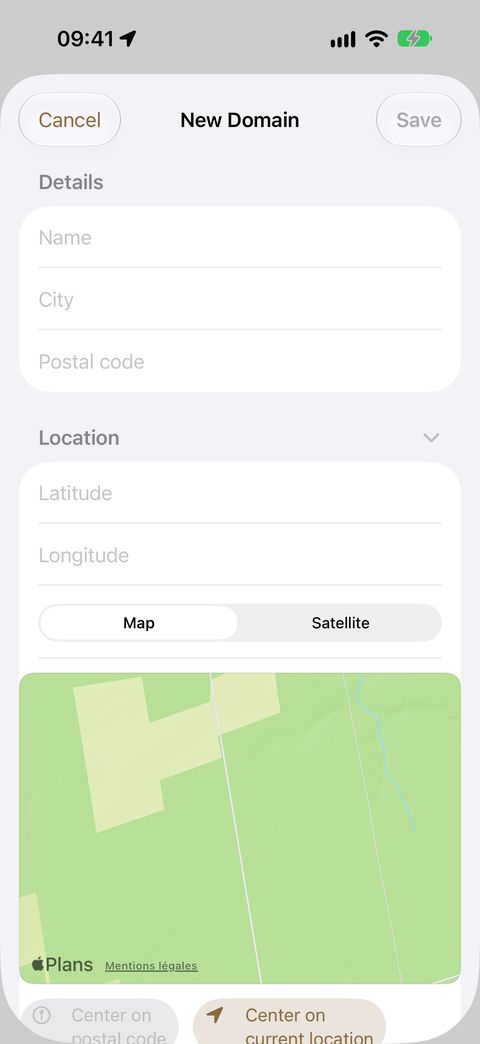
The Map style selector switches between Map and Satellite. The satellite view is often the most telling for spotting a forest edge or an access track.
Recording your contacts
Two contact cards per domain:
- Domain manager — the owner, or their representative;
- Forestry manager — the forestry professional.
For each: first name, last name, phone, email. The Import from contacts button fills in all four fields at once, from your iPhone's address book.
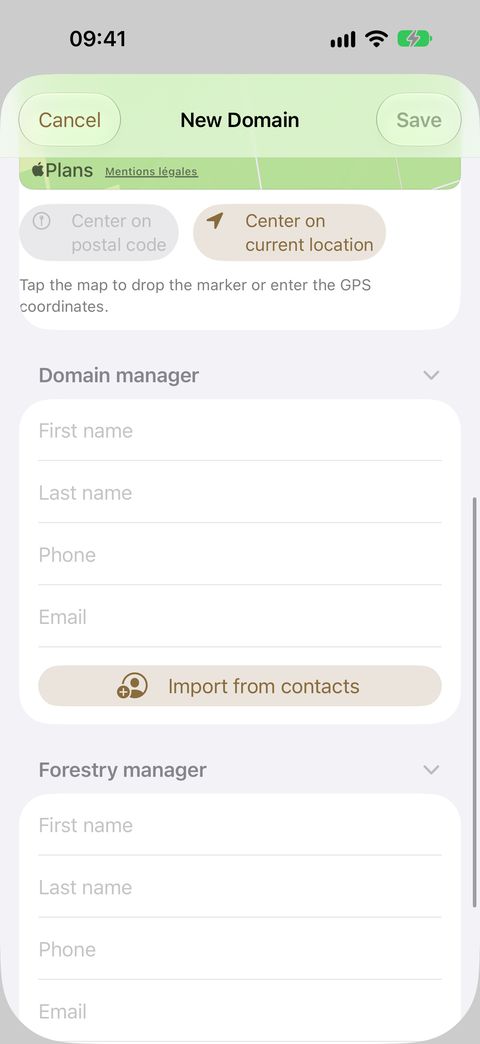
This information follows you into your exports: the recipient of a survey knows whom to contact.
Finding a domain
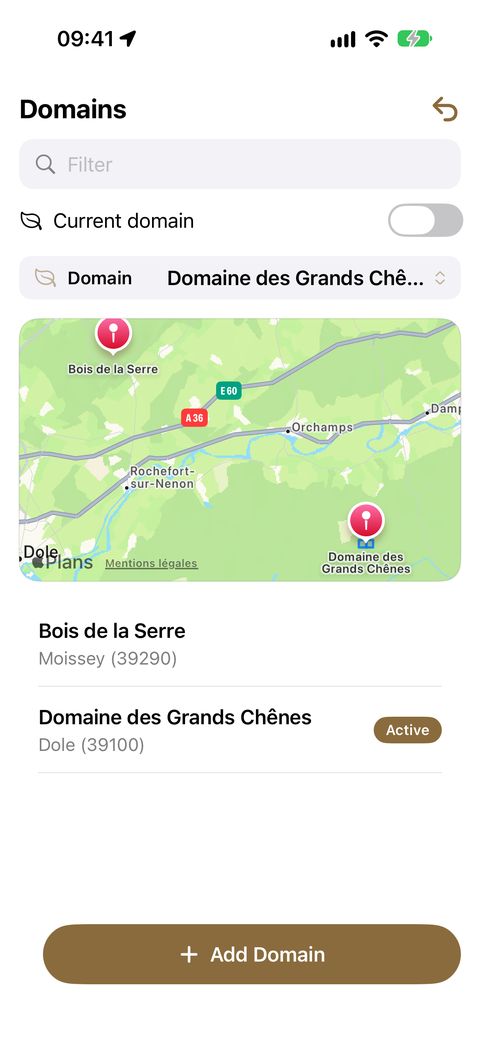
The Domains screen lists your domains in alphabetical order, with:
- a map at the top, if at least one domain is located — your domains appear on it as markers, and their parcels as polygons as soon as you have drawn them;
- a search field that filters on name, city and postal code;
- a toggle to show only the active domain — useful when you manage many.
Tap a domain in the list to open and edit it.
Choosing the domain you are working in
The Domain: ⟨name⟩ banner at the top of the screen shows the active domain. It determines what you see in Mapping, Observations and Exports.
Tap it to change it. Your choice is kept when you leave the app.
Deleting a domain
Tap Delete in the list, then confirm.
Good to know
- Several domains can have the same name, but they would then share the same photo album in your photo library (FA-⟨name⟩). Prefer distinct names.
- Renaming a domain does not rename its photo album: pictures already taken stay in the old album, the next ones will go into a new one.
- The default domain (an attribute of the domain card) and the active domain (the banner) are two different things: the first is a property of the domain, the second is your current working context.
What next
- Draw your parcels and paths — the step that makes automatic filing truly precise.
- Back to the getting started guide